Email Listener
The Email Listener is an inbound channel which regularly scans an email account for emails matching certain search conditions.
Whenever a mail in the observed mailbox is found matching the search condition, the mail is read and its content is returned from the channel. For each recognized mail a start event is created containing the properties of the mail, e.g. a message containing its plain text content, a message containing its HTML content, a list of messages containing its attachments and also a list of messages containing embedded images. The exact number and type of output parameters depends on the configuration of the channel.
The Email Listener can use the protocols IMAP, POP3 and EWS (Exchange web services) to access the Mailserver. See Email server connection environment entry for details.
The recognized mail always is deleted or (in case of IMAP) moved to another input folder to avoid that it is processed a second time.
The Email Listener returns at least two parameters MSG and HEADER. MSG is a Message containing the body of the mail, HEADER is a structured Message containing the Header fields of the mail. Depending on the configuration of the channel there may appear additional parameters like ATTACHMENTS, ALTMSG and IMAGES. See Configuration for details.
Purpose of object
The Email Listener serves as means to read mails and process its content by a Process model.
Creation
To create an Email Listener, follow the steps described in the general description of Channels.
Configuration
The dialog to configure the Email Listener looks like:
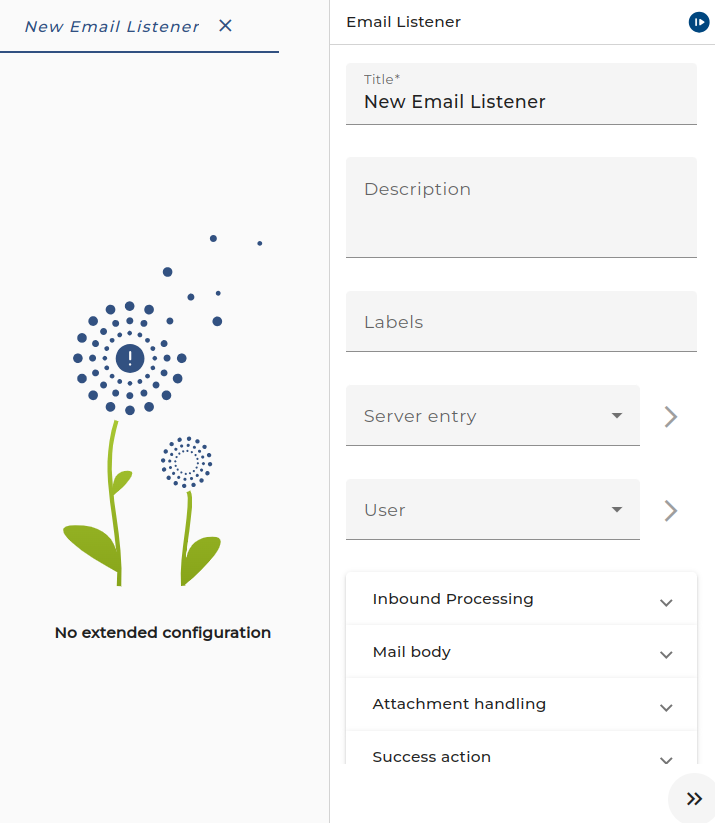
Step by Step
-
Server entry - The selected Email server connection containing the properties to connect to the mail server.
-
User - The user used to log in with the mail server. This is a User Credential of type technical user with user/password authentication.
-
E-Mail filter - here the user may enter a filter for the mails he is interested in. The filter expressions follow the syntax:
condition = andCond { "or" andCond }andCond = simple { "and" simple }simple = [ "not" ] ( "subject" | "from" ) "contains" literal-
Examples
subject contains "error" or subject contains "support"if you want to process only mails from the sender address Orchestra@mycompany.eu containing the word "error" in the subject.
from contains "Orchestra@mycompany.eu" and subject contains "error"
-
-
Max simult. events - Here, the user may enter the maximum number of mails read at once. The Email Listener searches its mailbox regularly. If the number of available mails matching the search condition exceeds the max number, the processing stops, and the remaining mails are read next time.
-
Mail body - In this section the processing of the mail body is configured:
-
Get binary message as additional parameter - Select this if you want to get the incoming mail as binary message. If this option is enabled, an additional parameter named
BINARYof type Message will be returned. It contains the incoming mail as RFC 822 binary. You might save this message to a file by a File Writer Channel in your process model. -
Mime type pattern - Select or change the expected Mime type of the text body of the mail. A MIME mail may contain its message text in several different formats. The Email Listener searches the mail content for the text content defined by the Mime type pattern. Typically, a mail always contains the text as plain text. So the MIME type
text/plainalways works. The text content may additionally be contained as HTML-text. If you want the Email Listener to return the HTML-text, you can settext/htmlhere. Because there exist different MIME types for HTML, e.g.text/html,text/xhtml, orapplication/html, it is preferable to select the pattern*/*html*in this case. If a mail server is merely used as a means to transfer technical content like CSV data, you have to set here the appropriate MIME type, e.g.text/csv.-
If this field contains an HTML type pattern or
text/*, then the Email Listener has two additional result parametersALTMSGandIMAGES. The parameterALTMSGdelivers a Message containing the plain text as binary content, and the parameterIMAGESdelivers a Message list containing the embedded images of the HTML mail (if any). -
The following rules apply:
-
If the Email Listener is configured with the Mime type pattern
text/*for the body, then Orchestra will preferably deliver the HTML body if available, otherwise thetext/plainbody will be delivered if available. -
If an HTML body is available,
ALTMSGandIMAGESare also filled;MSGcontains the HTML body. -
If only a plain body is available,
ALTMSGandIMAGESremain empty;MSGthen contains the plain body. -
If there is no body at all (neither HTML nor plain),
MSG,ALTMSG, andIMAGESremain empty; only attachments are delivered. -
If an HTML message is explicitly searched for (
*/*html*) and onlyplain/textis available,MSG,ALTMSG, andIMAGESremain empty, and theplain/textmessage is delivered as an attachment (HTML is explicitly requested!).
-
-
-
Deserializer - Configure the Deserializer to parse the body of the mail and create the result message
MSG. Along with this, one or more Stream filters may be added and configured.- Parsing modes:
- Parse on creation - The data is parsed by the selected deserializers while reading the byte stream. If an error occurs, it is visible only in the log file because no process instance exists yet.
- Parse on demand - The byte stream is read binary without interpreting it; together with the data, the configuration of the selected deserializer is stored. If the message is accessed, it is parsed using the attached deserializer configuration.
- Parsing modes:
-
-
Attachment Handling:
-
Mime type pattern - Select or change the expected Mime type of the mail attachments to be received. Only attachments matching the Mime type pattern are collected in the Message list
ATTACHMENTS. -
Deserializer - Configure the Deserializer to parse the attachments of the mail. If you select
*as Mime type pattern, you should select the Binary reader. Along with the deserializer, one or more Stream filters may be added and configured.
-
-
Polling Period - Typically, the channel searches its source for available data periodically.
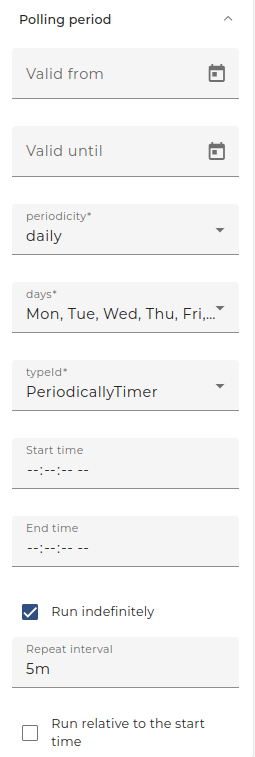
-
To change the intervals at which the channel searches its data, the user clicks on the button labeled with three dots and can edit the timer properties.
-
There are two types of timers, periodical timers and absolute timers, which are configured using the same dialog. In most cases, a periodical timer is used, which regularly creates a signal.
-
-
Timer Configuration:
-
Description for the timer - e.g. polling timer.
-
Valid from/to - Here, the user can state a time span where the timer is valid. Outside this time span, the timer is invalid and doesn't create events.
-
Mode - This option is only sensible if the timer dialog is used to configure a timer event. In the context of channels, it is disabled.
-
Trigger type - The user may restrict the timer to work only at certain days:
- Daily - Restrict the timer to fire events on certain days of the week.
- Monthly - Restrict the timer to fire events on a particular day of the month.
-
Absolute - If an absolute timer is configured, the user must enter a fixed time at which the timer raises an event. For example, one could declare the timer to run every day at 6:00 in the morning.
-
Periodically - If a periodical timer is used, the user has to configure the following properties:
- Start/End time - A time span of the day when the timer shall be active.
- Repeat count - Restrict the timer to fire only a certain amount of events after the start. The standard value is infinite, meaning there is no restriction.
- Repeat interval - The time interval after which an event is fired periodically.
-
-
Success action / Failure action - After reading a mail, it must be deleted or moved to another folder to ensure that the mail is not processed twice from Orchestra. For the success case and the error case, the appropriate action is configurable independently. Folders are not supported from POP3, so the move action is only available with IMAP.
-
Mark email as seen - If the mail sender requested a read acknowledgment and Orchestra deletes the mail, the mail sender might return a message to the sender saying that the mail was deleted without reading. To avoid this, you can set this checkbox. In this case, the mail sender gets a notification that the mail was read.
-
Start error process - If the channel encounters an error, you can connect it in the process model with an error start event to create a process instance handling that error.
- If the user sets the checkbox "Always", every time an error occurs, an according process instance will be created.
- If that error occurs regularly because of a short polling period, the user may want to avoid creating a large number of process instances. In this case, the user must not set "Always" but enter a period of time. If after an error further errors occur within that period, no further error processes will be created.
Throttling
This channel is supported by throttling limit feature that described in the Throttling chapter.
See also
Use the Email Sender to send a mail to an email server.